
Guess My Number
Guess My Number is a fun and interactive game on Roblox where players try to guess a hidden number within a set range. You get clues like higher or lower after each guess, making it a mix of luck and strategy. It’s simple to play but gets more exciting as you compete with others to find the correct number in the fewest tries.
Free Reveal Number NO KEY
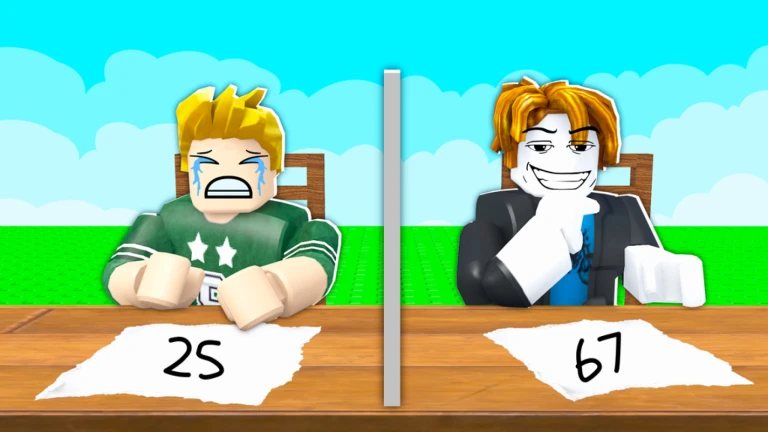
Free Guess My Number Script for Roblox lets you automate gameplay and improve your chances of winning easily. This keyless Roblox script is simple to use and comes with useful features to speed up guessing and enhance your overall experience without any hassle.
Guess My Number Script Features Table
| Feature | Description |
|---|---|
| Auto Guess | Automatically guesses numbers for faster wins |
| Smart Range Scan | Narrows down correct number quickly |
| No Key System | Use instantly without any key verification |
| Fast Execution | Smooth and quick performance in-game |
| User-Friendly GUI | Easy-to-use interface for all players |
Script Code
local CoreGui = game:GetService("CoreGui")
local ReplicatedStorage = game:GetService("ReplicatedStorage")
local UserInputService = game:GetService("UserInputService")
local StarterGui = game:GetService("StarterGui")

-- Destroy existing UI to prevent overlapping
if CoreGui:FindFirstChild("GuessMyNumberUI") then
    CoreGui.GuessMyNumberUI:Destroy()
end

-- Create ScreenGui
local ScreenGui = Instance.new("ScreenGui")
ScreenGui.Name = "GuessMyNumberUI"
ScreenGui.Parent = CoreGui
ScreenGui.Enabled = true -- Visible on startup

-- Main Frame
local MainFrame = Instance.new("Frame")
MainFrame.Size = UDim2.new(0, 300, 0, 200)
MainFrame.Position = UDim2.new(0.5, -150, 0.5, -100)
MainFrame.BackgroundColor3 = Color3.fromRGB(30, 30, 30)
MainFrame.BorderSizePixel = 0
MainFrame.Parent = ScreenGui

local UICorner = Instance.new("UICorner")
UICorner.CornerRadius = UDim.new(0, 12)
UICorner.Parent = MainFrame

local UIStroke = Instance.new("UIStroke")
UIStroke.Color = Color3.fromRGB(60, 60, 60)
UIStroke.Thickness = 2
UIStroke.Parent = MainFrame

-- Title
local Title = Instance.new("TextLabel")
Title.Size = UDim2.new(1, 0, 0, 40)
Title.BackgroundTransparency = 1
Title.Text = "Guess My Number"
Title.TextColor3 = Color3.fromRGB(255, 255, 255)
Title.Font = Enum.Font.GothamBold
Title.TextSize = 18
Title.Parent = MainFrame

-- Reveal Number Button
local RevealBtn = Instance.new("TextButton")
RevealBtn.Size = UDim2.new(0.8, 0, 0, 35)
RevealBtn.Position = UDim2.new(0.1, 0, 0.25, 0)
RevealBtn.BackgroundColor3 = Color3.fromRGB(0, 120, 215)
RevealBtn.Text = "Reveal Number"
RevealBtn.TextColor3 = Color3.fromRGB(255, 255, 255)
RevealBtn.Font = Enum.Font.GothamSemibold
RevealBtn.TextSize = 14
RevealBtn.AutoButtonColor = true
RevealBtn.Parent = MainFrame

local RevealCorner = Instance.new("UICorner")
RevealCorner.CornerRadius = UDim.new(0, 8)
RevealCorner.Parent = RevealBtn

-- Hint Number Button
local HintBtn = Instance.new("TextButton")
HintBtn.Size = UDim2.new(0.8, 0, 0, 35)
HintBtn.Position = UDim2.new(0.1, 0, 0.5, 0)
HintBtn.BackgroundColor3 = Color3.fromRGB(0, 170, 85)
HintBtn.Text = "Hint Number"
HintBtn.TextColor3 = Color3.fromRGB(255, 255, 255)
HintBtn.Font = Enum.Font.GothamSemibold
HintBtn.TextSize = 14
HintBtn.AutoButtonColor = true
HintBtn.Parent = MainFrame

local HintCorner = Instance.new("UICorner")
HintCorner.CornerRadius = UDim.new(0, 8)
HintCorner.Parent = HintBtn

-- Footer (Signature)
local Footer = Instance.new("TextLabel")
Footer.Size = UDim2.new(1, 0, 0, 30)
Footer.Position = UDim2.new(0, 0, 1, -30)
Footer.BackgroundTransparency = 1
Footer.Text = "made by akifrzayev"
Footer.TextColor3 = Color3.fromRGB(150, 150, 150)
Footer.Font = Enum.Font.Gotham
Footer.TextSize = 12
Footer.Parent = MainFrame

--- Dragging Logic ---
local dragging, dragInput, dragStart, startPos

local function update(input)
    local delta = input.Position - dragStart
    MainFrame.Position = UDim2.new(startPos.X.Scale, startPos.X.Offset + delta.X, startPos.Y.Scale, startPos.Y.Offset + delta.Y)
end

MainFrame.InputBegan:Connect(function(input)
    if input.UserInputType == Enum.UserInputType.MouseButton1 or input.UserInputType == Enum.UserInputType.Touch then
        dragging = true
        dragStart = input.Position
        startPos = MainFrame.Position

        input.Changed:Connect(function()
            if input.UserInputState == Enum.UserInputState.End then
                dragging = false
            end
        end)
    end
end)

MainFrame.InputChanged:Connect(function(input)
    if input.UserInputType == Enum.UserInputType.MouseMovement or input.UserInputType == Enum.UserInputType.Touch then
        dragInput = input
    end
end)

UserInputService.InputChanged:Connect(function(input)
    if input == dragInput and dragging then
        update(input)
    end
end)

--- Button Functions (FireServer) ---
RevealBtn.MouseButton1Click:Connect(function()
    ReplicatedStorage.Events.Remote.UseRevealNumber:FireServer()
end)

HintBtn.MouseButton1Click:Connect(function()
    ReplicatedStorage.Events.Remote.UseHint:FireServer()
end)

--- Toggle Menu with 'M' ---
UserInputService.InputBegan:Connect(function(input, gameProcessed)
    -- Prevent toggling if the user is typing in chat
    if not gameProcessed then
        if input.KeyCode == Enum.KeyCode.M then
            ScreenGui.Enabled = not ScreenGui.Enabled
        end
    end
end)

--- Notification ---
-- Small delay to ensure the notification works properly in executors
task.spawn(function()
    task.wait(0.5)
    pcall(function()
        StarterGui:SetCore("SendNotification", {
            Title = "Script Loaded",
            Text = "Press 'M' to hide or show the menu.",
            Duration = 7 -- Duration in seconds
        })
    end)
end)
How to Use Guess My Number Script
- Download and install a Roblox executor (like Synapse X or Krnl)
- Open Roblox and launch Guess My Number
- Copy the script from your website
- Paste the script into the Roblox executor
- Click Execute / Inject to run the script
- Use the GUI menu to enable features like Auto Guess
New to scripting? Here’s how to use Roblox scripts the right way.
FAQs – Guess My Number Script
1. Is the Guess My Number script free to use?
Yes, the script is completely free and does not require any key system.
2. Do I need an executor to run the script?
Yes, you need a Roblox executor like Krnl or Synapse X to run the script.
3. Is this script safe to use?
It is generally safe if you use a trusted executor, but always use scripts carefully.
4. Why is the script not working?
Make sure your executor is updated and the script is not patched or outdated.
5. Can I get banned for using this script?
There is always a risk when using scripts in Roblox, so use it at your own risk.
Unlock more powerful scripts right here!
- Run For Brainrots! Script For Roblox No Key 2026 [UPD]
- A dusty trip [🐺ANIMALS] Script NoClip , Fly & More [No KEY]
- Top 05 Flee the Facility Scripts For Roblox Free [ NO KEY ]
- Snow Rider Obby Parkour – Play Online Snowboard Adventure
- Play Obby vs Zombies Online – Roblox Zombie Defense Game 🎮🧟♂️